HEVC not playing in VLC
If H.265 or HEVC files fail in VLC, the old instinct is to hunt for codecs. The more useful answer now is that VLC usually already knows the format. What tends to fail is the decode path: the hardware method VLC chose, the GPU’s actual HEVC support, the output module, or the sheer weight of a high-resolution HEVC file. The best first move is usually to match VLC to the GPU and file, not to turn hardware decoding off immediately.
Match VLC to the right HEVC hardware path
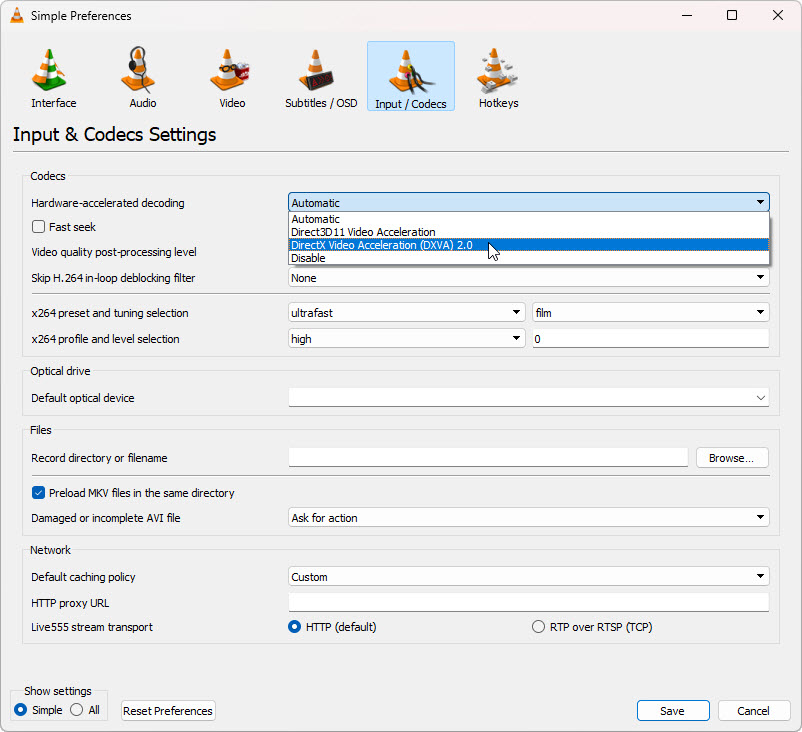
Many HEVC playback failures in VLC happen because Automatic picked the wrong method for that GPU and driver combination. Open Tools → Preferences → Input / Codecs, then inspect Hardware-accelerated decoding. If your machine should support HEVC decode, test a better hardware method first. Use Disable only as the fallback when hardware paths remain unstable.
Known-good starting paths for HEVC
- Audio plays but video stays black
- 4K files stutter badly
- The file opens in one player but not another
- Only very heavy H.265 files fail
- The file is clean and not damaged
- Your GPU should handle HEVC decode
- You want smoother playback rather than rescue playback
- You already know VLC still opens damaged files better
If you know the GPU family, use that knowledge. HEVC decode support varies by generation, and that matters more than old codec-pack advice. On a supported GPU, it often makes more sense to keep hardware decode active and change the method or output path. On an unsupported GPU, software decode or another player may be the realistic answer.
- Open Tools → Codec Information and confirm that the file is HEVC / H.265.
- If you know the GPU, check whether that generation should support HEVC decode.
- Test a better Hardware-accelerated decoding method before turning it off.
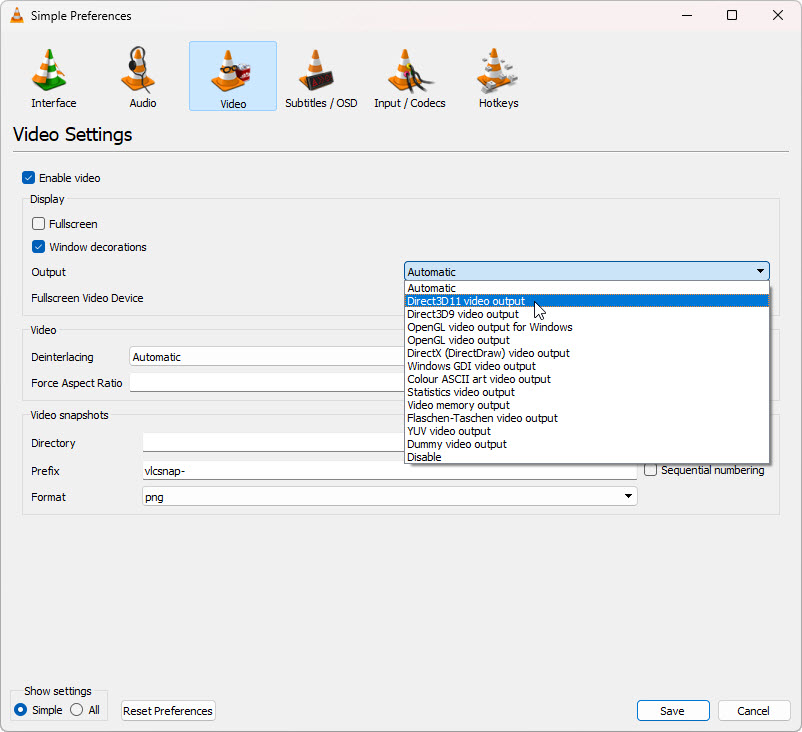
- If playback changes but is still unstable, change the Video output module.
- Compare the same file in the Windows playback route.
GPU decode support by generation
This is practical guidance, not an authoritative spec sheet. Driver quality, VLC version, exact output path, and the file itself still matter. The goal is to help users work out whether a playback problem is likely to be a GPU/decode-path issue rather than a missing VLC codec.
| GPU generation | H.264 | HEVC | VP9 | AV1 | Rough guidance |
|---|---|---|---|---|---|
| Intel graphics | |||||
| Pre-6th Gen Intel HD | Yes | No | No | No | Treat modern HEVC and AV1 as software-decode territory. |
| 6th–7th Gen Intel | Yes | Partial | Partial | No | Can handle some HEVC, but heavy files often expose limits. |
| 8th–10th Gen Intel | Yes | Yes | Yes | No | Usually a good HEVC baseline. AV1 is still unlikely. |
| 11th Gen / Iris Xe | Yes | Yes | Yes | Partial | Start by keeping hardware decode active and test the path. |
| 12th Gen+ / Arc | Yes | Yes | Yes | Yes | Strong modern baseline for HEVC and AV1. |
| NVIDIA GeForce | |||||
| GTX 700–900 | Yes | Partial | No | No | Early HEVC support only. Modern formats may fall back badly. |
| GTX 10 series | Yes | Yes | Partial | No | Usually solid for HEVC. AV1 is not the target here. |
| RTX 20 series | Yes | Yes | Yes | No | Good all-round baseline for HEVC and VP9. |
| RTX 30 series | Yes | Yes | Yes | Yes | Good starting point for AV1 decode troubleshooting. |
| RTX 40 series | Yes | Yes | Yes | Yes | Strong modern baseline. Look at VLC path choice before disabling decode. |
| AMD Radeon | |||||
| Pre-RX 400 | Yes | No | No | No | Old baseline. Treat HEVC and AV1 cautiously. |
| RX 400–500 | Yes | Partial | Partial | No | Mixed results. Heavy files can still hit decode limits. |
| RX 5000 | Yes | Yes | Yes | No | Usually a sound HEVC baseline. |
| RX 6000 | Yes | Yes | Yes | Partial | Can be workable for newer formats, but AV1 varies. |
| RX 7000 | Yes | Yes | Yes | Yes | Modern baseline for AV1 and HEVC checks. |
Use this as a starting point. If your GPU generation should support the codec, try a better hardware-accelerated decoding method or Video output path before falling back to software decode.
Still want to try the codec-pack route?
Some visitors still prefer a traditional Windows codec-pack route. That can be a reasonable optional fallback for Windows playback, even though it usually does not change how VLC itself decodes video.
Open Media Player Codec PackThis route can help Windows playback and some other players. It usually does not change how VLC itself decodes video.
Related pages
Quick answers
HEVC problems in VLC are often caused by the wrong hardware method, GPU support limits, heavy bitrate demands, or the rendering path rather than a missing codec pack.
Usually not for VLC itself. Extra codec packs are more useful for Windows playback than for VLC directly.
Test whether VLC picked the right hardware-accelerated decoding method for your GPU before disabling it entirely.
If the HEVC file is clean, high resolution, and GPU-heavy, Windows playback may be smoother because it follows a different hardware path.