VLC not playing video
When VLC stops playing a file, many users assume they need codecs. The better answer today is gentler and more honest: VLC already includes broad decoding support, so the old codec path is mostly closed. The problem is more often the wrong hardware playback method, the wrong output module, file condition, or the fact that another player now handles that format more efficiently. If the file is HEVC, AV1, or heavy 4K, the first question should be whether the current GPU and playback path are a good match for that file.
Check the decode method before turning hardware acceleration off
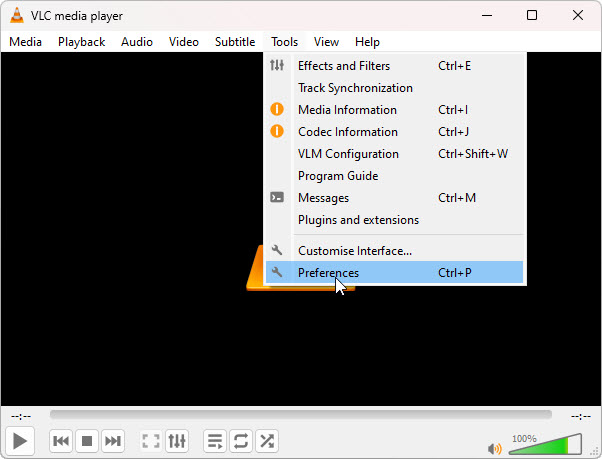
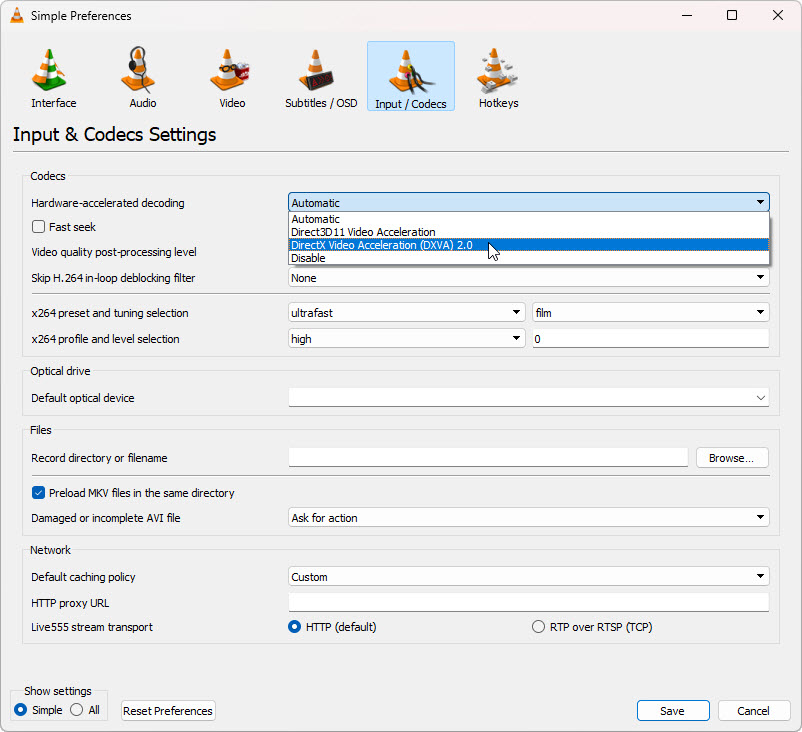
For black screen, audio-only playback, choppy video, and files that used to work, the most useful starting point is not a codec pack. It is the VLC decode path. Open Tools → Preferences, then go to Input / Codecs and inspect Hardware-accelerated decoding. If Automatic fails, try the other hardware methods your build exposes before falling back to Disable.
- Open Tools in the VLC menu bar and choose Preferences.
- Click Input / Codecs.
- Find Hardware-accelerated decoding.
- If you know the GPU and codec, try the most likely supported method first. If not, test another hardware method one at a time.
- Only use Disable as a fallback when hardware paths keep failing.
Known-good starting paths if you know the GPU
This is a practical first-pass helper, not a hard compatibility chart. It is meant to stop users from turning hardware decoding off too early.
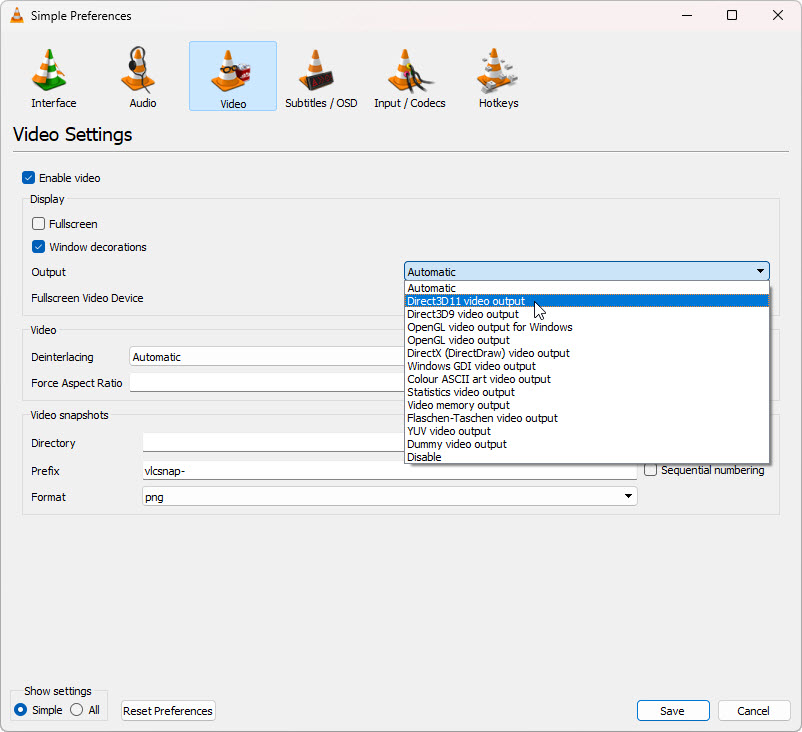
This is often a rendering or hardware-path issue rather than a missing codec. Test the decode method first, then the output module.
That usually means the file is crossing a playback-path limit, not that the format is unknown. Compare the same file in the Windows playback route.
That is where VLC still has real value: it is resilient with files that are damaged, incomplete, or strange.
If you know the GPU model, use it. Modern HEVC and AV1 playback can depend heavily on whether that GPU generation supports decode for the codec in question. When users know they have a supported path, it is smarter to match VLC to that path than to disable hardware acceleration immediately.
What to test first
- Open Tools → Codec Information and identify the codec.
- If you know the GPU, check whether it should support decode for that codec.
- In VLC, test a better hardware-accelerated decoding method before turning it off.
- If the problem stays, open Video settings and change the Output module.
- If broken files still open in VLC but clean heavy files do not, VLC is acting like a compatibility fallback rather than the smoothest playback path.
GPU decode support by generation
This is practical guidance, not an authoritative spec sheet. Driver quality, VLC version, exact output path, and the file itself still matter. The goal is to help users work out whether a playback problem is likely to be a GPU/decode-path issue rather than a missing VLC codec.
| GPU generation | H.264 | HEVC | VP9 | AV1 | Rough guidance |
|---|---|---|---|---|---|
| Intel graphics | |||||
| Pre-6th Gen Intel HD | Yes | No | No | No | Treat modern HEVC and AV1 as software-decode territory. |
| 6th–7th Gen Intel | Yes | Partial | Partial | No | Can handle some HEVC, but heavy files often expose limits. |
| 8th–10th Gen Intel | Yes | Yes | Yes | No | Usually a good HEVC baseline. AV1 is still unlikely. |
| 11th Gen / Iris Xe | Yes | Yes | Yes | Partial | Start by keeping hardware decode active and test the path. |
| 12th Gen+ / Arc | Yes | Yes | Yes | Yes | Strong modern baseline for HEVC and AV1. |
| NVIDIA GeForce | |||||
| GTX 700–900 | Yes | Partial | No | No | Early HEVC support only. Modern formats may fall back badly. |
| GTX 10 series | Yes | Yes | Partial | No | Usually solid for HEVC. AV1 is not the target here. |
| RTX 20 series | Yes | Yes | Yes | No | Good all-round baseline for HEVC and VP9. |
| RTX 30 series | Yes | Yes | Yes | Yes | Good starting point for AV1 decode troubleshooting. |
| RTX 40 series | Yes | Yes | Yes | Yes | Strong modern baseline. Look at VLC path choice before disabling decode. |
| AMD Radeon | |||||
| Pre-RX 400 | Yes | No | No | No | Old baseline. Treat HEVC and AV1 cautiously. |
| RX 400–500 | Yes | Partial | Partial | No | Mixed results. Heavy files can still hit decode limits. |
| RX 5000 | Yes | Yes | Yes | No | Usually a sound HEVC baseline. |
| RX 6000 | Yes | Yes | Yes | Partial | Can be workable for newer formats, but AV1 varies. |
| RX 7000 | Yes | Yes | Yes | Yes | Modern baseline for AV1 and HEVC checks. |
Use this as a starting point. If your GPU generation should support the codec, try a better hardware-accelerated decoding method or Video output path before falling back to software decode.
Still want to try the codec-pack route?
Some visitors still prefer a traditional Windows codec-pack route. That can be a reasonable optional fallback for Windows playback, even though it usually does not change how VLC itself decodes video.
Open Media Player Codec PackThis route can help Windows playback and some other players. It usually does not change how VLC itself decodes video.
Related pages
Quick answers
The cause is usually the decode path, hardware method, video output module, file damage, or a format that another player handles more efficiently.
Usually not. VLC mostly uses internal decoding, so extra codec packs rarely change VLC playback directly.
Not always. First test whether Automatic picked the wrong path for that GPU and codec by trying a better hardware method or output module.
Try changing the Video output module and then compare the same file in the Windows playback path.